
 EHR
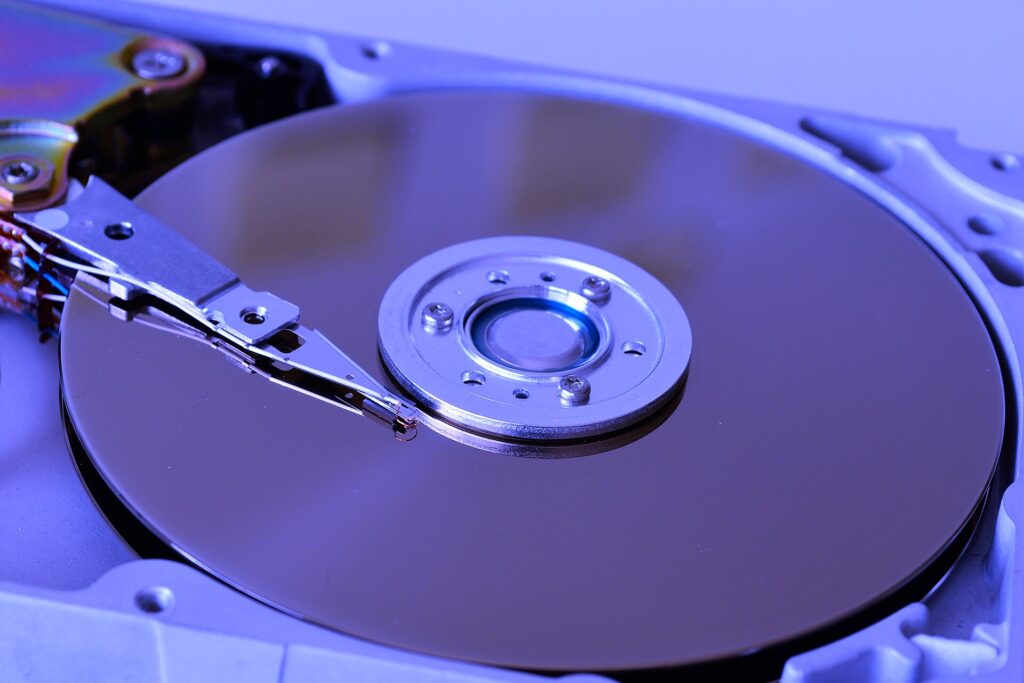
Unable to access your data anymore? System telling you that you have a bad drive? Getting a pop-up that asks you to initialize or format your external drive? Here’s a handy tool to help you decide what to do next. Answer these questions using the links below.
Question: Can you still access your data?
- Yes
- No, the drive stopped working
- No, the drive was formatted, the operating system was reinstalled, or the partition is lost
- Some files can’t be accessed, but others are OK
- I’m receiving strange errors
Question: Are there any strange sounds coming from the drive? Listen closely. Common signs of trouble are clicking, quickly spinning up and down when powered on, beeps, buzzes, clunking, or scraping sounds. (Try comparing the sound to a drive you know is working correctly if you’re unsure.)
- Yes, I hear strange sounds
- No strange sounds, but it doesn’t spin up
- No strange sounds, it spins up and sounds normal
Here are a couple examples. Note, however, that these are far from the only sounds that can indicate a problem.
Power it off! Strange sounds like these indicate a possible physical failure and the longer it runs in that state, the more chance of permanent data loss through damage to the platters. Question: Listen closely. Did you hear…
- The drive spinning up, clicking, then spinning down after applying power?
- A repeating beeping or buzzing sound?
The drive definitely needs to spin to work. At this point, professional data recovery is needed to repair the drive and recover the data. <<<Start professional data recovery>>> Read on if you’d like to learn a bit more about the possible causes. Question: Did you also notice a slight buzzing or beeping sound while it was powered on?
If it isn’t making any strange sounds, there are still some steps you’ll need to take.
First, connect the drive to another computer you know is working, so you can be sure the problem is with the drive, not the computer.
If it’s an internal drive, connect it via SATA internally to another desktop computer, or use a USB dock/adapter. If it’s an external drive, simply plug it in to that other computer. Some external drives can be removed from their housing, so that you can rule out problems with the housing’s electronics. Others, however, can only be connected via USB. Question: What type of drive is this?
- It’s external, and the drive inside does not have a SATA connection
- It’s external, and when connected internally via SATA to another computer the data is still inaccessible
- It’s internal, and when connected internally via SATA to another computer the data is still inaccessible
Spinning up when powered on, clicking, and then spinning down is a common sign of bad read/write heads. Professional data recovery is required to open the drive in a clean environment and perform a head transplant with a compatible set of heads. <<<Start professional data recovery>>>
If you noticed a slight buzzing or beeping sound while it was powered on, it’s likely the read/write heads are stuck to the platters. This prevents the drive from spinning up. This can only be fixed with professional data recovery. To restore the drive’s functionality, it’ll need to be opened in a clean environment. The read/write heads will need to be unstuck from the platters, and there is a high chance the heads will also be damaged and require replacement with a matching set. Take a look at our videos for head failure and stuck heads for more information. <<<Start professional data recovery>>>
If your drive doesn’t spin, and doesn’t make any other sounds like beeps or buzzes… FILL IN: PCB, electronic component (diode), motor, spindle?
If the drive still functions, but you’ve lost access to your data, this is called a logical failure (as opposed to a physical failure). This can happen when the drive is formatted or a partition is lost. At this point, recovering the data will depend on whether or not those blocks have been overwritten. Stop using the drive immediately, except for recovery efforts. Any write activity on the drive may overwrite the data you’re looking to recover.
This happens because, while your data is still on the drive, the partition table is telling your computer that those blocks are free space and can be overwritten at any time. The danger is even higher in the case of a fresh OS install, because the OS itself may have been written on those blocks. There is less danger if the partition is lost, because your computer likely thinks that those blocks aren’t working.
If this is the problem, the drive needs software recovery. Each ticket varies in difficulty, and the outcome is far from assured. Data recovery professionals do software recoveries all the time. They have an intimate working knowledge of partition tables and file system structures, a wide variety of software tools, and the experience to know which tool will work best for each individual ticket. Depending on the severity of the damage, they may be able to recover some file system structures in order to find the lost data.
It’s possible to perform this kind of recovery on your own. However, be sure not to install anything on the drive itself. Another system (or bootable tools) should be used to access it as a secondary drive. It’s also strongly recommended that, before attempting any type of software recovery, you make a clone of the drive. That way, if your recovery attempts accidentally cause further damage, you’ll be able to start the process from the beginning.
Is it worth it for you to attempt software recovery on your own?
It’s certainly possible, and in simple cases it may save you money. However, there are a few things to keep in mind: With easier recoveries, some professional services may cost as much or less than buying the tools yourself. Professionals already have them. If you choose the right data recovery center, you’ll have added peace of mind knowing that they made a clone first, and that they’ve used the best tools for the situation. They will ensure the best possible result in difficult recoveries. Most companies don’t charge if they are unable to recover your critical data, so if it is truly unrecoverable, you’ll be better off having gone with a professional.
<<<Start professional data recovery>>> for your logical failure problem.
You can access some files but not others. The problem may not be as severe as typical physical damage, but the result may be similar if you can’t view the data you need. There are many possible culprits in these cases.
Your drive may be developing bad sectors, indicating a failing drive. If this is the problem, you’ll want to replace it as soon as possible. If the data is critical, you’ll definitely want to go with a professional. Depending on the original problem, further efforts on your part to work with a failing drive may cause more damage. If you don’t want to go for professional data recovery, and you’re aware of the risks of further damage, there are a couple things you can try.
make clone? <<<ddrescue>>>? .. Then professional data recovery.
Some errors indicate that your drive is failing, like CRC (cyclical redundancy check) errors. Use tools like smartmontools (GSmartControl for GUI), CrystalDiskInfo, HD Tune, or a manufacturer’s tool to check what’s called SMART data. It won’t tell you everything going on, but if something looks off, chances are your drive is on its last legs.
Back to the top
You can still access your data; that’s great. If you don’t have a current backup, make one immediately! You can copy your data manually or use a familiar backup program (like the tools found in Windows or Mac OS) to back up your data to a secondary drive, like an external USB drive. If you run into problems, you may want to try cloning with a free program called ddrescue, which will do a good job avoiding bad sectors to get the most data. Clear instructions for using ddrescue can be found here.