
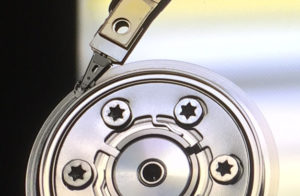
The platters and actuator heads of a hard drive.
Your computer will show the capacity of a 1 Terabyte (TB) hard drive as only 931 Gigabytes (GB). That’s simply a difference in how manufacturers and operating systems define storage (manufacturers use base-10 math, while Windows computers use base-2).
But if your drive is reporting a capacity that is drastically wrong — such as a 4TB drive showing up as a 0GB drive, for example — you’re dealing with a configuration error or a physical failure.
Below, we’ll explain how to diagnose either issue. If you’ve lost data from a hard drive, SSD, or any other storage device, we’re here to help. Datarecovery.com provides risk-free evaluations, and we support all of our industry-leading services with a no data, no charge guarantee: If we’re unable to recover the files you need, there’s no charge for the attempt.
To start a case, submit a ticket online or call 1-800-237-4200 to speak with an expert.
The 2TB Limit: MBR vs. GPT
If your large hard drive (3TB, 4TB, or larger) is showing exactly 2TB of space and the rest is unusable, you are likely using an outdated partition scheme called Master Boot Record (MBR).
MBR is a legacy standard (which means that it’s no longer actively used for most purposes). It uses 32-bit values to list sectors. On standard hard drives that use 512-byte sectors, that creates a mathematical limit: It can only account for 2 Terabytes (2TB) of data. Anything beyond that point is invisible to the system because the partition table literally runs out of numbers to address the space.
To use the full capacity of a modern drive, you must initialize it using the GUID Partition Table (GPT).
Note: Converting a drive from MBR to GPT is destructive (it wipes the data). If you need to switch formats, back up your files first, then use Disk Management in Windows to re-initialize the disk.
Firmware Corruption and Service Area Failures
In many cases, a drive that reports an incorrect capacity is suffering from a serious physical failure.
Hard drives have a reserved zone on the platters called the Service Area (or System Area). This zone stores the drive’s firmware, which tells the drive how to function. It also includes the translator, which maps physical sectors to logical block addresses (LBA).
If the service area is corrupted, or if the read/write heads are too damaged to read it, the drive may default to a safe mode or report incorrect factory parameters. Common symptoms include:
- 0 Bytes: The drive spins up but cannot load the translator, so it reports no storage capacity.
- 32MB Capacity: A classic symptom of a firmware panic or specific motherboard conflicts.
- Model Number Changes: The drive may identify itself with a generic factory name (e.g., a Western Digital drive appearing as “WDC ROM MODEL-HAWK”) instead of its specific model number.
In these cases, the wrong capacity is a symptom that the drive is damaged. Standard recovery software cannot fix this because the software relies on the BIOS/OS correctly identifying the drive geometry — which is exactly what is failing.
Host Protected Areas (HPA)
Sometimes, the space is being used by data you are not supposed to see. A Host Protected Area (HPA) is a section of the drive reserved for diagnostic tools or boot code. While usually small, a corrupted HPA can sometimes glitch and hide a significant portion of the drive from the operating system.
Software tools can sometimes reset the HPA, but use them with caution — if you need the data from the drive, do not attempt to reset the HPA.
Hard Drive Data Recovery Services
If you see “0 Bytes,” “32MB,” or a generic model name, you are dealing with firmware corruption or internal mechanical failure.
At Datarecovery.com, we specialize in repairing these firmware modules and recovering data from physically compromised media. Our engineers use proprietary hardware to bypass the corrupted Service Area and access your data directly. All of our hard drive services feature our no data, no charge guarantee, and with the industry’s most advanced hardware inventory, we’re prepared to provide fast, reliable results.
If you cannot access your files, contact us at 1-800-237-4200 or submit a case online for a free evaluation.


