
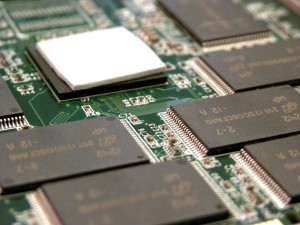
An SSD’s internal NAND chips and controller.
You attempt to save a document or transfer a file, and your computer throws an error: The drive is “Write Protected” or you’ve got a “Read-Only File System.”
If this isn’t a permissions error, it’s an issue with your storage media. Solid State Drives (SSD) may trigger an emergency read-only state to prevent permanent data loss.
When an SSD switches to read-only mode, you need to back up important files immediately (or ideally, contact a professional data recovery provider for help). Below, we’ll explain the mechanics, why read-only mode happens on an SSD, and how to retrieve your files as safely as possible.
SSD Read-Only Mode: A Quick Overview
Hard Disk Drives (HDDs) can theoretically be rewritten indefinitely until mechanical failure occurs. Of course, some type of failure will occur, given enough time — it’s impossible to build a hard drive (or any other mechanical device) that will work forever.
But SSDs have a more explicitly defined lifespan, which is based on their usage. They store data in NAND flash cells, and every time you write data to a cell, you slightly degrade the insulation of that cell.
The industry measures this process in Program/Erase (P/E) Cycles. You generally don’t need to worry about P/E cycles unless you’re an engineer — in most consumer applications, you’ll replace your computer long before you reach the end of your SSD’s write cycle limit.
However, if you regularly transfer huge files back and forth — or you purchased a used SSD by mistake — you might reach the end of your SSD’s operational life.
When the drive calculates that its NAND cells are too degraded to reliably store new information, it stops that from happening. Why? For data protection: If the drive allowed you to keep writing, the cells would fail, and your existing data would become corrupt and unreadable.
Other Causes for SSD Read-Only Mode
Write cycles are an inherent issue with NAND tech, but as we noted, you’re unlikely to hit your drive’s P/E cycle limit (at least, if you’ve bought a relatively new drive).
Other issues can also prompt a drive to lock into read-only mode:
- Firmware Bugs: The firmware is the operating system running inside the drive. If the firmware encounters a logical error it cannot resolve or an unexpected power fluctuation, it may default to read-only mode to prevent corruption.
- Bad Block Management Failure: SSDs have a reserve of spare blocks to replace those that go bad. If the number of bad blocks exceeds the spare area’s capacity, the controller locks the drive to prevent data from being written to unstable areas.
- Controller Damage: Physical damage or overheating can cause the controller to trigger the fail state.
In any case, if your SSD goes into read-only mode, it’s a big deal. It’s also one of the best case scenarios for a media failure — assuming that everything worked as intended — because you still have access to the data.
Can You Fix a Read-Only SSD?
Generally, no. Once an SSD enters this state due to wear or internal failure, you can’t fix it, and even if you could, you wouldn’t want to trust that particular drive with data anymore.
You may find software guides online suggesting you use command-line tools to remove the “Read-Only” attribute. Those commands only work if the read-only flag was set by the operating system settings. They cannot override the hardware-level lock imposed by the SSD’s controller.
Note: If your drive is in read-only mode, treat it as a critical emergency. Do not reboot the computer unnecessarily or run disk repair utilities, as these actions can stress the controller and cause the drive to go completely offline.
How to Recover Your Data
If the drive is still mountable (you can see the files), your immediate priority is to drag and drop your most critical files to a backup drive.
However, read-only mode often makes this impossible for the average user. Modern operating systems need to write metadata (tiny access logs and temporary files) just to open a folder or mount a drive. If the SSD refuses all write requests, the operating system may fail to mount the drive entirely, or it may freeze when you attempt to copy files.
We recommend professional data recovery regardless of whether the drive is accessible — and it’s not because we want more business (okay, fine, it’s not just because we want more business). When an SSD presents a serious failure symptom, you don’t know what exactly happened. The drive could sustain additional issues when you attempt to access it.
The bottom line: If the data on your SSD is truly important, get it to a professional. Reputable data recovery providers should only charge you for a transfer, assuming that the SSD is accessible.
But if you don’t really need the data on the device, you can try to copy files on your own. Just recognize that you’re taking a risk.
Professional Data Recovery Solutions for SSDs
Recovering data from a locked SSD requires bypassing the standard controller operations. We utilize specialized hardware that places the drive into a factory mode. From there, data recovery consists of a few basic steps:
- Bypassing the Controller: We interrupt the standard communication path to stop the controller from blocking access.
- Direct Memory Access: We communicate directly with the NAND flash chips to read the raw data, ignoring the read-only flags set by the firmware.
- Virtual Translation: Since the drive’s internal map may be corrupt, we rebuild a virtual map of the data to reconstruct your files.
Again, a read-only SSD should be fully recoverable in the vast majority of cases. Data recovery engineers will still need to evaluate the drive before providing pricing, since the underlying issue can affect the steps undertaken for a successful data recovery.
At Datarecovery.com, we specialize in non-destructive SSD recovery. We provide risk-free evaluations to provide you with peace of mind during a data loss emergency — and with our comprehensive no data, no charge guarantee, you only pay if we recover what you need.
If your SSD has locked you out, contact us immediately at 1-800-237-4200 or submit a case online for a free evaluation.


