
A No Bootable Device Found error means your computer’s BIOS or UEFI — the firmware that starts your hardware — cannot locate an operating system to load.
Usually, you’ll see this error when you’ve changed your computer’s hardware in some way; for example, you installed a new solid-state drive (SSD), or you’ve altered your system’s boot order.
To resolve this, we recommend first checking your hardware connections and then verifying your boot order settings in the BIOS/UEFI. Below, we’ll walk you through some basic steps to troubleshoot the issue.
First, an important note: If your boot drive contains important files and you don’t have a backup, treat the “no bootable device found” error message as a data loss event. Some of the steps below could potentially overwrite files and increase the chance of permanent data loss.
To discuss the situation with an expert, call 1-800-237-4200 or open a ticket online. Datarecovery.com provides risk-free evaluations, and we support all services with a no data, no charge guarantee: If we’re unable to recover the files you need, there’s no charge for the attempt.
What Causes the “No Bootable Device Found” Error?
When a system fails to find a bootable device, a number of issues might have occurred (and we’ll start with the simplest):
- Loose Physical Connections: The SATA or NVMe cables connecting your drive to the motherboard have wiggled out of place.
- Incorrect Boot Priority: The computer is trying to start from a USB drive, hard drive, SSD, or disc that does not have an operating system.
- Corrupted Boot Configuration Data (BCD): The software files that tell the computer how to start Windows or macOS are damaged.
- Hard Drive / SSD Failure: The storage media itself has suffered a mechanical or electronic breakdown.
If you’ve seen any indications of storage media failure (such as clicking noises or slow operation), stop here — don’t attempt data recovery on your own. Running a hard drive or SSD after a failure can cause permanent data loss.
Troubleshooting a “No Bootable Device Found” Error
Before assuming the worst about your hardware, you can try a few simple fixes.
1. Check Hardware Integrity and Connections
External devices shouldn’t confuse the boot process, but if you’ve ever booted from an external drive or external CD/DVD drive, you might have inadvertently changed the boot order.
Disconnect all USB flash drives, external hard drives, and printers. If you’re comfortable opening your computer, make sure that the storage drive is firmly seated in its slot.
2. Verify the Boot Order in BIOS/UEFI
Your computer follows a specific list to find an operating system. If a non-bootable device is higher on that list than your hard drive, the system will hang.
- Restart your computer and tap the designated key (usually F2, F12, or Del, but you should see instructions when restarting the computer) to enter the BIOS/UEFI setup.
- Locate the Boot or Startup tab.
- Ensure your primary hard drive or “Windows Boot Manager” is at the top of the list.
3. Address Partition Style and Mode Conflicts
Modern computers use UEFI mode and GPT partitions, while older systems use Legacy/BIOS and MBR. If these settings were changed during a firmware update, the drive will suddenly become invisible to the boot loader. Switching between UEFI and Legacy modes in your settings might restore access.
Note: Changing partition styles or formatting drives involves a high risk of permanent data loss. If you suspect the drive partition table is corrupted, avoid using repair commands unless you have a verified backup.
And realistically, you should always have a backup before attempting repairs of any kind; otherwise, you’re risking media damage.
Is My Storage Device Failing?
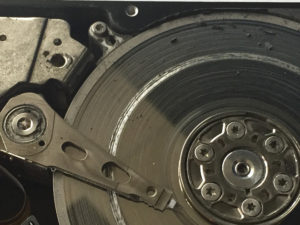
This hard drive shows rough platter damage where the head remained in contact with the platters for several hours of operation.
If the BIOS does not list your hard drive at all — even after checking cables — the drive may have suffered a physical failure. Mechanical hard drives might emit a clicking or grinding sound, while Solid State Drives (SSDs) often simply go dark (or brick).
When software fixes like the Windows Startup Repair tool fail to recognize the installation, the metadata required to find your files has been compromised. Repeatedly attempting to reboot can cause further degradation to the storage media.
Take this seriously! The photo to the left shows a hard drive that sustained substantial physical damage by operating in a failed condition. Once a hard drive’s magnetic platters are damaged, data recovery is much more difficult (if not impossible).
Professional Data Recovery Solutions
Recovering data from a non-booting device requires a controlled environment and specialized equipment. At Datarecovery.com, we utilize purpose-built cleanrooms and proprietary imaging tools to bypass damaged firmware and extract files safely. We prioritize the integrity of your original media, offering risk-free evaluations and a No Data, No Charge guarantee. Our engineers have decades of experience handling everything from corrupted file systems to head crashes and fire- and flood-damaged media.
If your computer refuses to boot, the safest path forward is to stop using the device immediately to prevent further damage. You can start a case online or call us at 1-800-237-4200 to discuss your recovery options with an expert.


