
Windows will issue a “checking file system” message when it encounters errors that prevents it from accessing your data; if you’re stuck on a screen that says Checking file system on C: (or another drive letter) for hours, the operating system can’t reconcile the metadata of your drive with the actual data stored on the platters or flash cells.
You can usually resolve this by forcing a manual bypass of the Autochk process. With that being said, if you don’t have a backup of important files, this should be treated as a data loss event.
Here’s why: The checking file system error message is indicative of bad sectors, which are small areas of the desk that can no longer be accessed. If Windows is unable to fix those bad sectors automatically, it could indicate a failure of your hard drive or solid state drive (SSD).
At Datarecovery.com, we provide risk-free evaluations and support all cases with a no data, no charge guarantee: If we’re unable to recover the files you need, there’s no charge for the attempt. Get started by opening a ticket online or call 1-800-237-4200 to speak with an expert.
Below, we’ll discuss this error message in greater detail and provide tips for fixing the problem.
Understanding Why the File System Check Hangs
When Windows shuts down improperly (like during a power surge) or detects a dirty bit — a flag on the drive indicating the file system is in an inconsistent state — it triggers an automatic scan upon reboot.
Under normal circumstances, this takes a few minutes. If it never finishes, it indicates one of the following:
- Mechanical or Physical Degradation: The drive’s read/write heads are struggling to access specific sectors.
- Large-Scale File Corruption: A massive number of orphaned files or corrupted indexes are overwhelming the utility. Learn more about file corruption.
- Software Conflicts: Third-party applications or recent updates have interfered with system tools.
Note that if you experience any other unusual symptoms (such as clicking or whirring noises coming from an HDD), storage media issues are likely. In that case, don’t follow the steps below; replace the storage device or contact a data recovery provider.
Bypassing the “Checking File System” Loop
If you’re confident the drive is functional, you can attempt to bypass the check to reach your desktop. Follow these steps:
- Force a Restart: Hold down the power button to restart your computer.
- Interrupt the Process: When the message appears, you usually have a few seconds to press any key to skip the check. If the keyboard doesn’t respond, the system may already be frozen.
- Disable via Command Prompt: Once you’re back in Windows — or by using a Windows Recovery Environment (WinRE) USB — you can tell Windows to stop checking that specific drive.
- Use the chkntfs command: Opening a Command Prompt as an Administrator and typing chkntfs /x c: instructs the system to exclude the C: drive from the next boot-time scan.
Bypassing the check stops the message, but it doesn’t fix the underlying error. If the drive is failing, continued operation can cause permanent data loss. Once again, if the drive contains important data, do not take any of these steps — call our team at 1-800-237-4200 for a free evaluation.
Assessing Drive Health from Within Windows
Once you’ve bypassed the loop, you can use S.M.A.R.T. (Self-Monitoring, Analysis, and Reporting Technology) tools to peek at the drive’s internal health logs.
While Windows has some built-in tools, third-party utilities may provide more detail. You’re looking for issues like a large Reallocated Sector Count, or a “Caution” flag on the drive — if you see those types of indicators, you’ve got failing storage media.
To learn more about S.M.A.R.T. tools, read: How to Read Hard Drive S.M.A.R.T Data.
Professional Support for Failing Drives
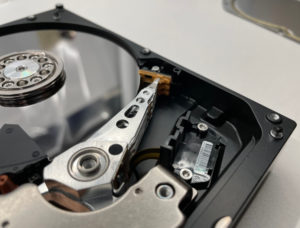 Attempting to force a stuck file system check to finish can cause permanent data loss. For that reason, if you don’t have a backup, your first course of action is to find a reputable data recovery provider.
At Datarecovery.com, we utilize purpose-built hardware imagers that can read around bad sectors. We also maintain certified cleanrooms for media repairs, and our extensive hardware inventory allows for fast turnaround times, even for legacy media.
We provide risk-free evaluations for all media types and operate under a no data, no charge guarantee — you only pay if we successfully recover your essential files.
Restore your files safely, securely, and cost effectively. Submit a case online or call us at 1-800-237-4200 to speak with a recovery specialist.